
iPhone Tips:ショートカットで
2つの写真を合成する
2つの写真を合成する

最近のiOSでは写真の切り抜きなどもできるようになったこともあり、画像合成も一般的に広がりつつあるように思います。従来ですとadobeのPhotoshopに代表される画像編集ソフトが必要でしたが、iPhoneのみでも可能になっているため、その方法をご紹介します。
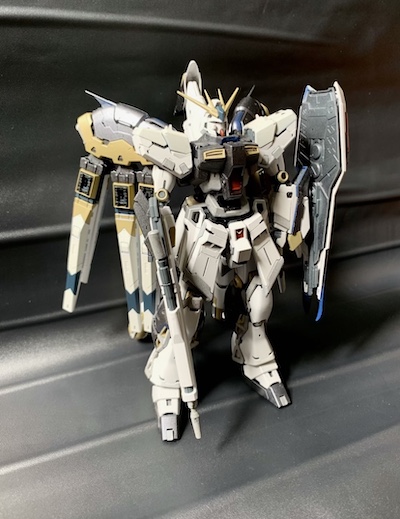
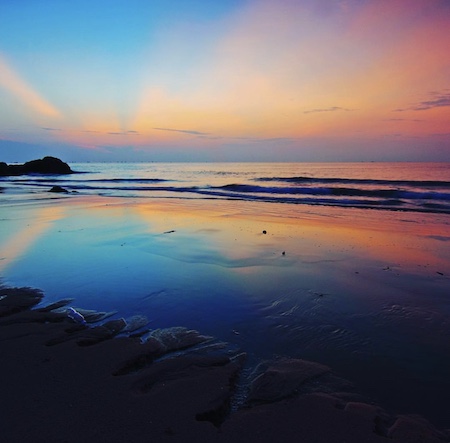
まず、例としてこの2つの写真を合成します、
”Complete with just an iPhone! How to merge two photos”
Recently, iOS has made it possible to cut out photos, and I think that image synthesis is becoming more common. Traditionally, image editing software such as Adobe’s Photoshop was required, but since it is possible only with the iPhone, we will introduce the method.
First, as an example, let’s combine these two photos,
「ショートカット」を使う
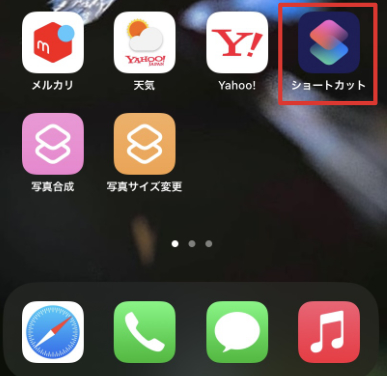
あまり使ったことがない、という人もいると思いますが「ショートカット」というアイコンがあります。これはいわば、設定されたscriptを使用するためのものですがざっくり言えばアプリを生成するものとも言えます。
I think that some people have never used it much, but there is an icon called “shortcut”. So to speak, this is for using the set script, but roughly speaking, it can also be said to generate an application.
「写真合成アプリ」を作成しよう
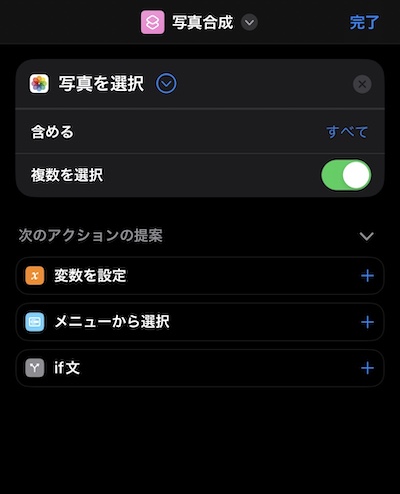
まずショートカットの右上の+ をタップ。すると下部に検索窓が表示されますので、ここに「写真」と打ち込みます。
すると写真に関連する項目が表示されますので「写真を選択」をチョイス。この時、「複数を選択」ボタンを緑にして選択してください。
First, tap the + on the top right of the shortcut. Then a search window will appear at the bottom, so type “photo” here.
Then, the items related to the photo will be displayed, so select “Select photo”. At this time, please make the “Select multiple” button green and select it.
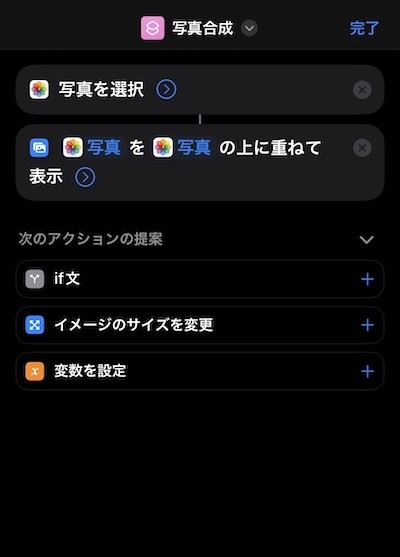
さらに下部のウインドウに「編集」と打ち込み、メディアの「イメージを重ねて表示」をタップ。
さらに、そのままだとサイズが大きすぎると思いますので、「サイズ」を入力。例ではインスタ投稿を考えて横幅1080にしています。(数字とところを指でタッチしていると変更可能になります)
Furthermore, type “Edit” in the lower window and tap “Overlay image” in Media.
In addition, I think that the size is too large as it is, so enter “size”. In the example, the width is set to 1080 in consideration of Instagram posting. (If you touch the number and place with your finger, you can change it.)

さらに、そのままだとサイズが大きすぎると思いますので、「サイズ」を入力。例ではインスタ投稿を考えて横幅1080にしています。(数字とところを指でタッチしていると変更可能になります)
さらに「保存」を選択します。デフォルトでは最近の項目に保存になりますが、事前に新規のアルバムを作成しておいて、そこにも入れておくこともできます。
In addition, I think that the size is too large as it is, so enter “size”. In the example, the width is set to 1080 in consideration of Instagram posting. (If you touch the number and place with your finger, you can change it.)
Then select “Save”. By default, it will be saved in recent items, but you can create a new album in advance and put it there as well.
使いやすくするためにホーム画面に共有
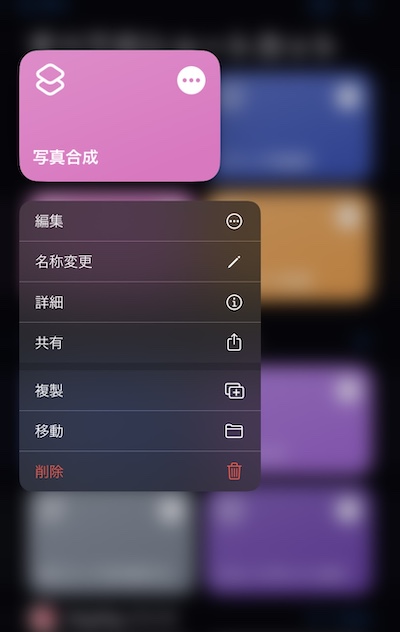
ショートカットのタイトルもわかりやすく「写真合成」に変更しておきます。またホーム画面にアイコン表示させておきましょう。作成した写真合成をタッチして「共有」を選んで設置します。
Change the title of the shortcut to “Photo Synthesis” to make it easier to understand. Also, let’s display the icon on the home screen. Touch the created photo composition and select “Share” to install it.
具体的な合成の方法
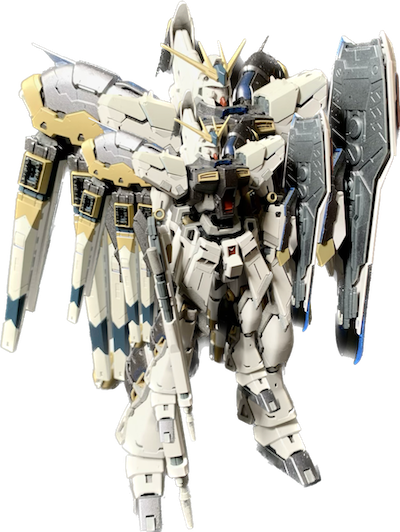
今回の場合、ガンプラと背景を組み合わせますが、先にガンプラの写真で切り抜きたいMS本体をタッチしておき、白い波のようなものが現れてコピー/共有が表示されるはずですので、コピーしてメモにでも貼り付けるか、共有で写真に切り抜き画像を保存しておきます。
In this case, we will combine the Gunpla and the background, but first touch the MS body that you want to cut out from the Gunpla photo, and something like a white wave should appear and copy/share should be displayed, so copy it. and paste it in a note, or save the clipped image in Photos in Share.
さっそく使ってみます。「写真合成」をタップすると、選択する写真を選べます。この時に合成時に上にしたい写真を先に選んでください。当然2つ選びます。
すると自動的に合成作業が行われますが、バグか1つ目の画像も合成されて出力されてしまいますので、いらなければ後で削除してください。
Then, the compositing work will be performed automatically, but if there is a bug, the first image will also be composited and output, so please delete it later if you do not want it.
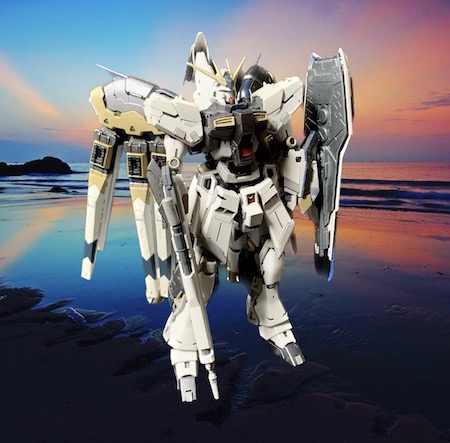
2つ目にガンプラと背景の写真が重ねて表示されます。この時に、上の画像のサイズや位置などを指2本で調整できます。もし斜めになってしまって水平にしたい場合は、下の丸矢印のマークで水平にリセットできます。
調整できたら、これでOKです。
Second, the gunpla and the background photo are superimposed. At this time, you can adjust the size and position of the upper image with two fingers. If it is tilted and you want to make it horizontal, you can reset it horizontally with the round arrow mark below.
Once adjusted, it’s OK.
Impression
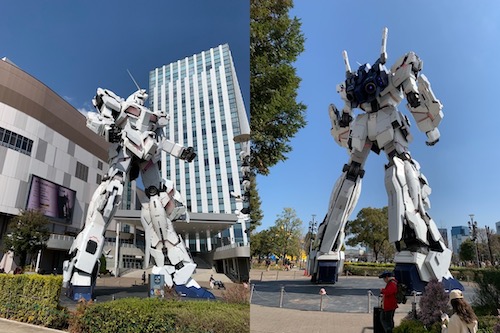
使ってみた印象としては1枚目のバグ?がなぜできるのかわかりませんが、意外とちゃんと切り抜きできるので感心しました(そこ!笑)Photshopでも慣れないとパスを切るのも意外に難しいので、これは便利かも。
また「横に連結」もできるので、水平さえ合わせればパノラミックな横長の写真も作成できますね!
As an impression of using it, is it the first bug? I don’t know why it can be done, but I was impressed that I could cut it out surprisingly well (laughs).
You can also “link horizontally”, so you can create a panoramic landscape photo by aligning the horizontal lines!
“Last but not least,Sorry for bad English.
Best regards,”
Share Me !